Tasks and sessions, together
AI agent task manager for Mac
Esquip keeps each task together with the agent session doing the work. Manage multiple coding agents across projects, see which tasks need you, and return to a saved conversation.
Use the agent you choose for each project. Codex, Claude Code, and OpenCode are available now, running through their native CLIs inside Esquip — not a replacement chat interface.
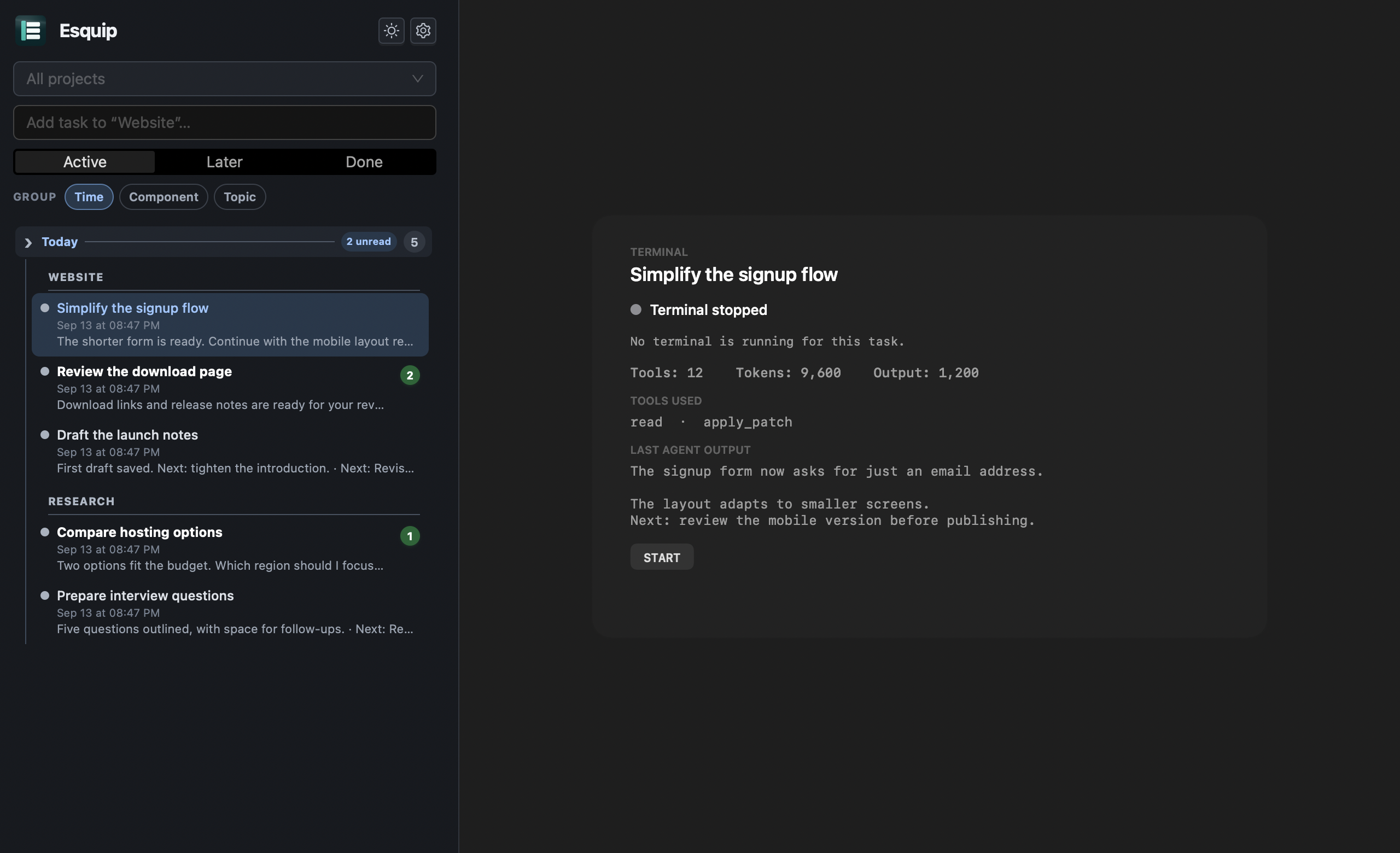
A bug fix, another project, and a place to return
- Start with one outcome. In a project using Codex, create a task: “Find why this test fails. Explain the cause before changing anything.” Review the initial read-only investigation, then ask for the fix.
- Keep another project moving. While that task runs, open a project using Claude Code and ask it to compare proposals in your documents folder. Multiple tasks can run in parallel, within one project or across projects.
- Look for what needs you. Select All projects to see the tasks together. Read their summaries and unread updates; open a task when its agent has a question or an outcome ready for review.
- Stop now, continue later. Use Stop terminal to stop a session. Return to the same task and click Start to continue its saved conversation. The task’s brief, progress, and next step stay alongside it, so you do not have to reconstruct the work in a new chat.
Moving a task to Later does not stop its agent. For parallel tasks that edit files, divide the work carefully or use separate working folders: two agents can otherwise change the same files.
Your agents and accounts, in one window
Choosing an agent for one project does not lock other projects to that choice. You can also set up multiple profiles for the same agent — for example, Codex with a work login and a separate personal login — and select the right profile for each project.
Use an agent installation you already maintain, or let Esquip manage it. Existing tasks keep their original agent profile; changing a project’s agent does not transfer conversations between agents. See how to set up work and personal accounts.
More than a task list or terminal tabs
A conventional task manager records what needs doing. A collection of terminal tabs gives you places to run agents. Esquip connects the two: open a task to find its brief, progress, next step, and the agent session where you can continue the work.
As a coding agent session manager, it helps you return to the right conversation and notice work that needs attention. The same approach works for research, writing, and planning when your chosen agent has the tools, files, and access it needs.
Try it with your next task
Esquip is free to use on macOS 13 or newer with Apple Silicon. Tasks and sessions live on your Mac; agents still connect to their providers, whose subscriptions or usage fees are separate. Keep Esquip open and your Mac awake while work needs to run.
Follow the getting-started guide to connect an agent and create your first task.